Setup
Important
All of the programs are needed to make LPRT fully function!
Pretty simple just unpack the .zip or .7z file into a folder of your choice.
Open lprt.exe
-
Installation
- Download & Install OBS like you do it with any other program. Get it from the OBS Website or use the Steam version
-
OBS Version 30 or greater recommended.
-
Set your OBS Settings
- Go to Settings
- Go to Output & set the Output Mode to
Advanced - The Encoder Settings
- The Recording Settings
- The Audio Settings
-
Enable the OBS Webserver
- Open OBS
- Click on the
toolsdropdown - Click on
Websocket Server-Settings - Activate
Websocket Server - Activate
authentification! - Generate a new password
- Click on show
Connection information - Update the OBS Settings in LPRT
- You can change the settings manually by copy the
ip,port&passwordinto{ROOT}/obs_settings.json.{ "ip": "{your ip}", "port": "{your port}", "pw": "{your password}", "timeout": 1 }
-
First Recording
- Open LPRT & OBS
- Go to the recording page

- Select a lets play(Nothings shows up? No problem.)
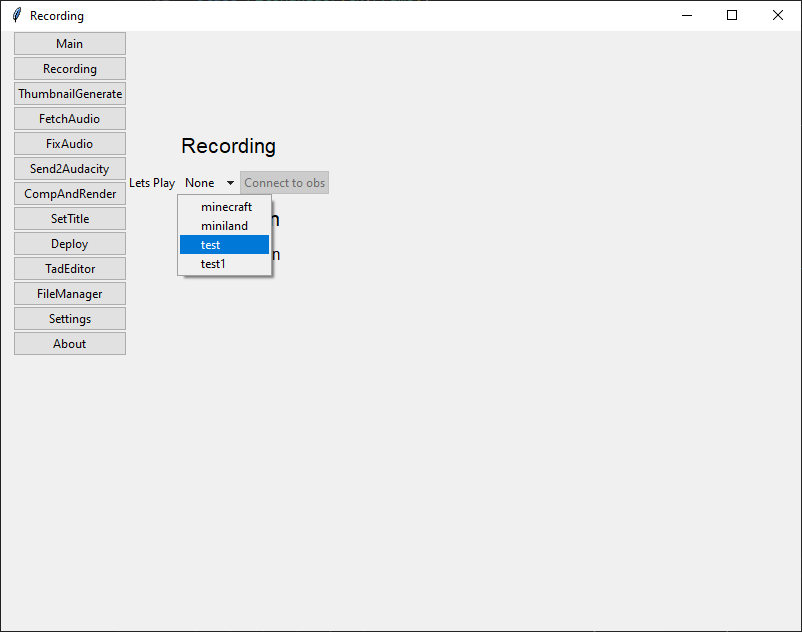
- Press the connect button

- Start Recording in OBS
- You see your recording time & LPRT will create data for further automation.
| setting | value |
|---|---|
| Track 1 - Audio Bitrate | 192 |
| Track 1 - Name | Mic |
| Track 2 - Audio Bitrate | 192 |
| Track 2 - Name | Desktop |
| Track 3 - Audio Bitrate | 64 |
| Track 3 - Name | Sync |
Note
You need at least 2 Tracks for LPRT Automation otherwise some features might not work as expected!
Track 1 must be the MIC sound & Track 2 must be the DESKTOP sound!
The are my settings for recording. Feel free to choose your own, if it works!
| setting | value |
|---|---|
| Recording Path | In my case it is C:/Users/{username}/Videos |
| Generate File Name without Space | False |
| Recording Format | MPEG-4 (.mp4) |
| Video Encoder | In my case it is NVIDIA NVENC H.264. You will record via CPU? Then select x264 |
| Audio Encoder | FFmpeg AAC |
| Audio Track | At minimum 1 & 2. If you want to have a sync track, select: 1, 2 & 3 |
| Rescale Output | Disabled |
| Custom Muxer Settings | Empty |
| Automatic File Splitting | False |
Note
In case of BSOD's use MKV as Recording Format!
You need to remux the Videos manually, only MP4(H264) is supported by LPRT!
Note
Only AAC/AC3(AC3 is audacity export only) is supported as audio format!
The are my settings for recording. Feel free to choose your own, if it works!
| setting | value |
|---|---|
| Rate Control | CBR |
| Bitrate | 10000kbps |
| Keyframe Interval | 0s |
| Preset | P5:Slow |
| Tuning | High Quality |
| Multipass Mode | Two Passes(Quarter Resolution) |
| Profile | high |
| Look ahead | True |
| Pycho Visual Tuning | True |
| GPU | the id of your gpu, normally 0 |
| B-Frames | 2 |
- Installation - Audacity itself
- Download & Install Audacity like you do it with any other program. (You need to remember the audacity filepath!)
- Get the 3.0.0 Audacity version from here
-
Currently only Audacity 3.0.0 is supported.
Other versions might not work as expected!
- First startup
- On the first startup you need to enable the modpipe.

- Go to Edit > Settings

- Go to Module & enable mod-script-pipe
- Restart Audacity for the next step
- Installation - FFMPEG for Audacity
- Download the 2.2.2 version from here
-
Currently only FFMPEG-Audacity 2.2.2 is supported.
- Go to Edit > Settings
- Goto Libraries > search

- A filedialog open up.
- Select the
avformat-55.dllnormally located inC:\Program Files\FFmpeg For Audacity\. (Only if Audacity does this not automatically) - Restart Audacity
FFMPEG downloads & install automatically
Warning
The files are from a third-party website!
Libpng16-16.dll unpacks automatically on app start!