




An open source tool to generate AWS infrastructure diagrams from AWS CloudFormation templates.
- Parses both YAML and JSON AWS CloudFormation templates
- Supports 159 AWS resource types and any custom resource types
- Supports
Rain::Moduleresource type - Supports
DependsOn,Ref,Fn::GetAttrelationships, and${}resource attributes - Supports
::Id-suffixed parameter types such asAWS::EC2::Image::Id,AWS::EC2::SecurityGroup::Id,AWS::EC2::Subnet::Id,AWS::EC2::VPC::Id,AWS::SSM::Parameter::Value<AWS::EC2::Image::Id>,List<AWS::EC2::SecurityGroup::Id>,List<AWS::EC2::Subnet::Id>, orList<AWS::EC2::VPC::Id> - Generates D2, DOT, draw.io, GIF, JPEG, Mermaid, PDF, PNG, SVG, and TIFF diagrams
- Highly configurable visual representation
- D2 Diagram Generation
- Mermaid Diagram Generation
- AWS CloudFormation Diagrams Interactive Viewer
- Editable draw.io export
- A modern web application,
- Provides 156 generated diagram examples
Have ideas? Open an issue or start a discussion.
Following software must be installed:
Following command installs required Python dependencies, i.e., PyYAML, Diagrams, and graphviz2drawio.
# using pip (pip3)
pip install AWS-CloudFormation-Diagrams
usage: aws-cfn-diagrams [-h] [-o OUTPUT] [-f FORMAT] [--embed-all-icons] filename

Generate AWS infrastructure diagrams from AWS CloudFormation templates

positional arguments:
  filename             the AWS CloudFormation template to process

options:
  -h, --help           show this help message and exit
  -o, --output OUTPUT  output diagram filename
  -f, --format FORMAT  output format, allowed formats are d2, dot, dot_json, drawio, gif, jp2, jpe, jpeg, jpg, mermaid, pdf, png, svg, tif, tiff, set to png by default
--embed-all-icons embed all icons into svg or dot_json output diagramsAWS CloudFormation Diagrams could output diagrams in the D2 format. For instance, type:
aws-cfn-diagrams examples/wordpress/WordPress-RDS.yaml -f d2After compiling with D2 CLI, the generated diagram is rendered as follows:

AWS CloudFormation Diagrams could output diagrams in the Mermaid format. For instance, type:
aws-cfn-diagrams examples/wordpress/WordPress-RDS.yaml -f mermaidThe generated diagram is rendered as follows:
flowchart TB
  subgraph cluster_VpcId [VpcId]
    direction TB
    style cluster_VpcId fill:#f2e6ff,color:#2D3436,font:sans-serif,font-size:12pt,stroke:box
    subgraph cluster_WebSecurityGroup [WebSecurityGroup]
      direction TB
      style cluster_WebSecurityGroup fill:#fff5e6,color:#2D3436,font:sans-serif,font-size:12pt,stroke:box
      resource_WebSecurityGroup@{ img: "https://raw.githubusercontent.com/mingrammer/diagrams/refs/heads/master/resources/aws/compute/ec2.png", label: "WebSecurityGroup", h: 120, constraint: "on" }
      style resource_WebSecurityGroup fill:none,stroke:none
      resource_WordPressInstance@{ img: "https://raw.githubusercontent.com/mingrammer/diagrams/refs/heads/master/resources/aws/compute/ec2-instance.png", label: "WordPressInstance", h: 120, constraint: "on" }
      style resource_WordPressInstance fill:none,stroke:none
    end
    subgraph cluster_DBSecurityGroup [DBSecurityGroup]
      direction TB
      style cluster_DBSecurityGroup fill:#fff5e6,color:#2D3436,font:sans-serif,font-size:12pt,stroke:box
      resource_DBSecurityGroup@{ img: "https://raw.githubusercontent.com/mingrammer/diagrams/refs/heads/master/resources/aws/compute/ec2.png", label: "DBSecurityGroup", h: 120, constraint: "on" }
      style resource_DBSecurityGroup fill:none,stroke:none
      resource_WordPressDB@{ img: "https://raw.githubusercontent.com/mingrammer/diagrams/refs/heads/master/resources/aws/database/rds-mysql-instance.png", label: "WordPressDB", h: 120, constraint: "on" }
      style resource_WordPressDB fill:none,stroke:none
    end
    resource_VpcId@{ img: "https://raw.githubusercontent.com/mingrammer/diagrams/refs/heads/master/resources/aws/network/vpc.png", label: "VpcId", h: 120, constraint: "on" }
    style resource_VpcId fill:none,stroke:none
  end
  resource_WebSecurityGroup --> resource_VpcId
  linkStyle 0 stroke:black,color:#2D3436,font:sans-serif,font-size:13pt
  resource_WordPressInstance --> resource_WebSecurityGroup
  linkStyle 1 stroke:black,color:#2D3436,font:sans-serif,font-size:13pt
  resource_WordPressInstance --> resource_WordPressDB
  linkStyle 2 stroke:black,color:#2D3436,font:sans-serif,font-size:13pt
  resource_DBSecurityGroup --> resource_WebSecurityGroup
  linkStyle 3 stroke:black,color:#2D3436,font:sans-serif,font-size:13pt
  resource_DBSecurityGroup --> resource_VpcId
  linkStyle 4 stroke:black,color:#2D3436,font:sans-serif,font-size:13pt
  resource_WordPressDB --> resource_DBSecurityGroup
  linkStyle 5 stroke:black,color:#2D3436,font:sans-serif,font-size:13pt
AWS CloudFormation Diagrams could output diagrams in the dot_json format. For instance, type:
aws-cfn-diagrams examples/wordpress/WordPress-RDS.yaml -f dot_jsonDiagrams in the dot_json format can be viewed and manipulated interactively thanks to AWS CloudFormation Diagrams Interactive Viewer. Just type:
open interactive_viewer/index.htmlThen open examples/wordpress/WordPress-RDS.dot_json in AWS CloudFormation Diagrams Interactive Viewer.
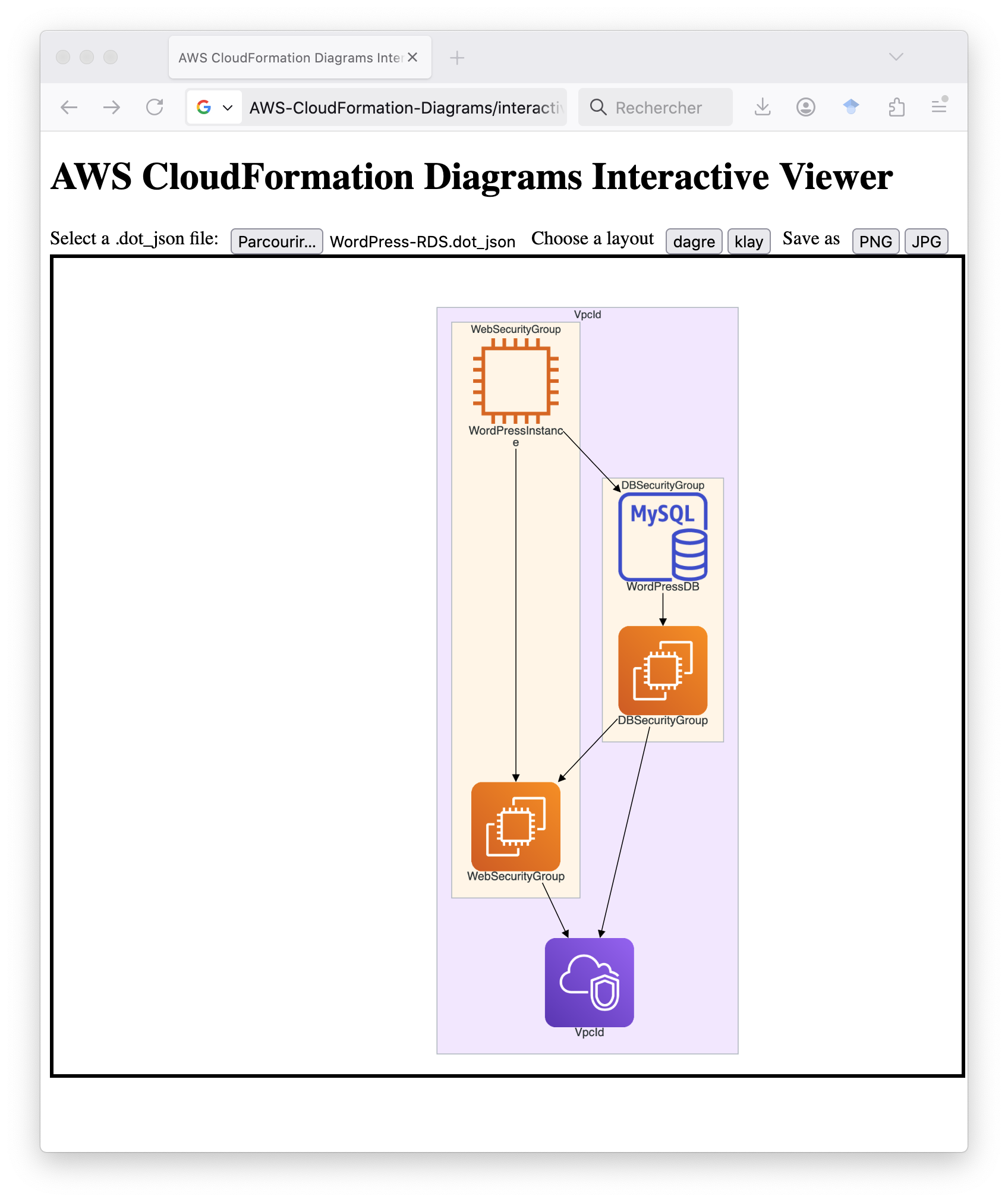
AWS CloudFormation Diagrams Interactive Viewer allows users to zoom in/out diagrams, to see cluster/node/edge tooltips, open/close clusters, move clusters/nodes interactively, and save as PNG/JPG images.
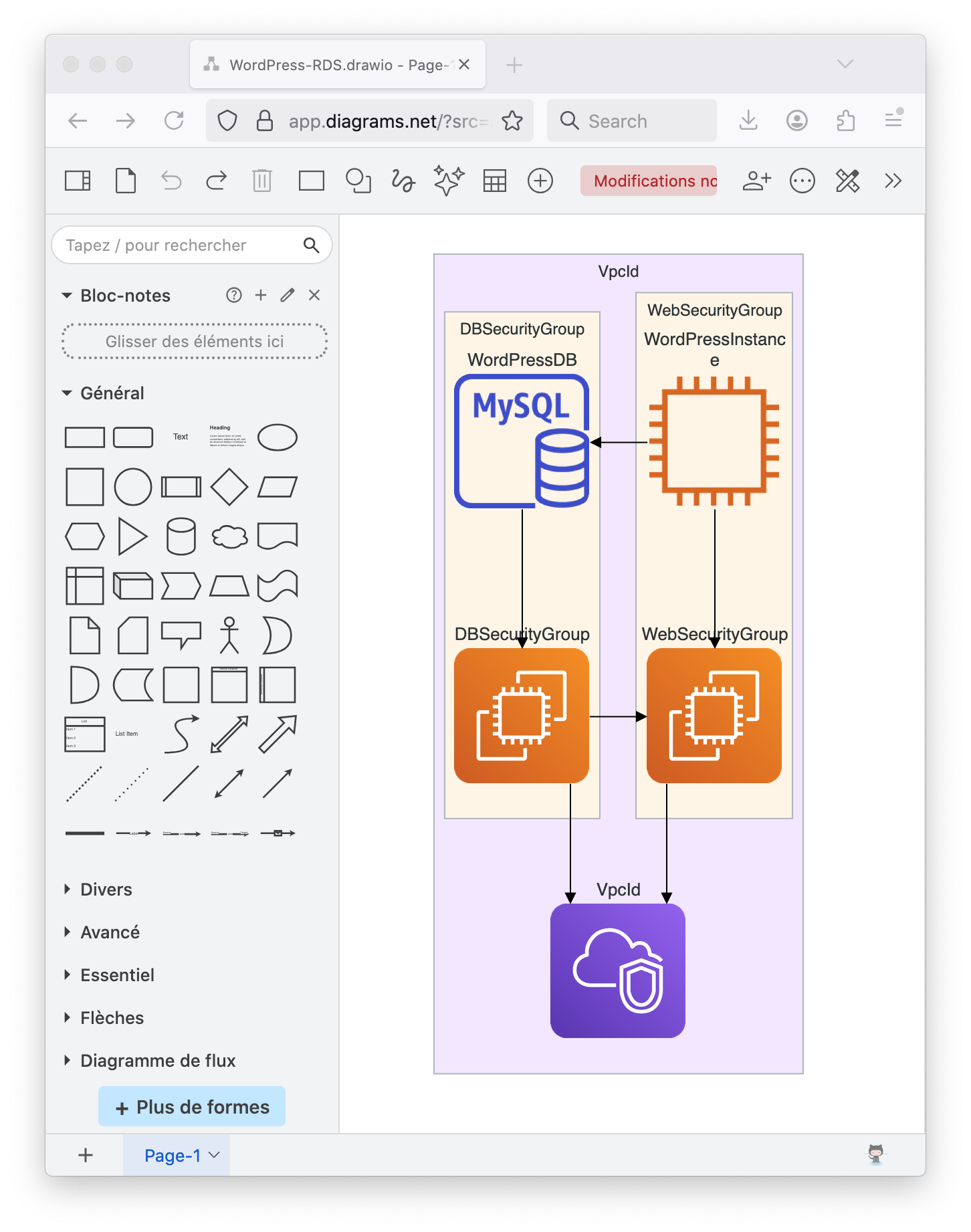
AWS CloudFormation Diagrams could output diagrams in the drawio format. For instance, type:
aws-cfn-diagrams examples/wordpress/WordPress-RDS.yaml -f drawio✨ Generated drawio files can be opened with draw.io or your favorite diagram editor.
The folder diagrams contains generated diagrams for most of AWS CloudFormation templates.
Following diagram is about WebApp:

Following diagram is about Gitea with Rain::Module:

Following diagram is about Gitea without Rain::Module:
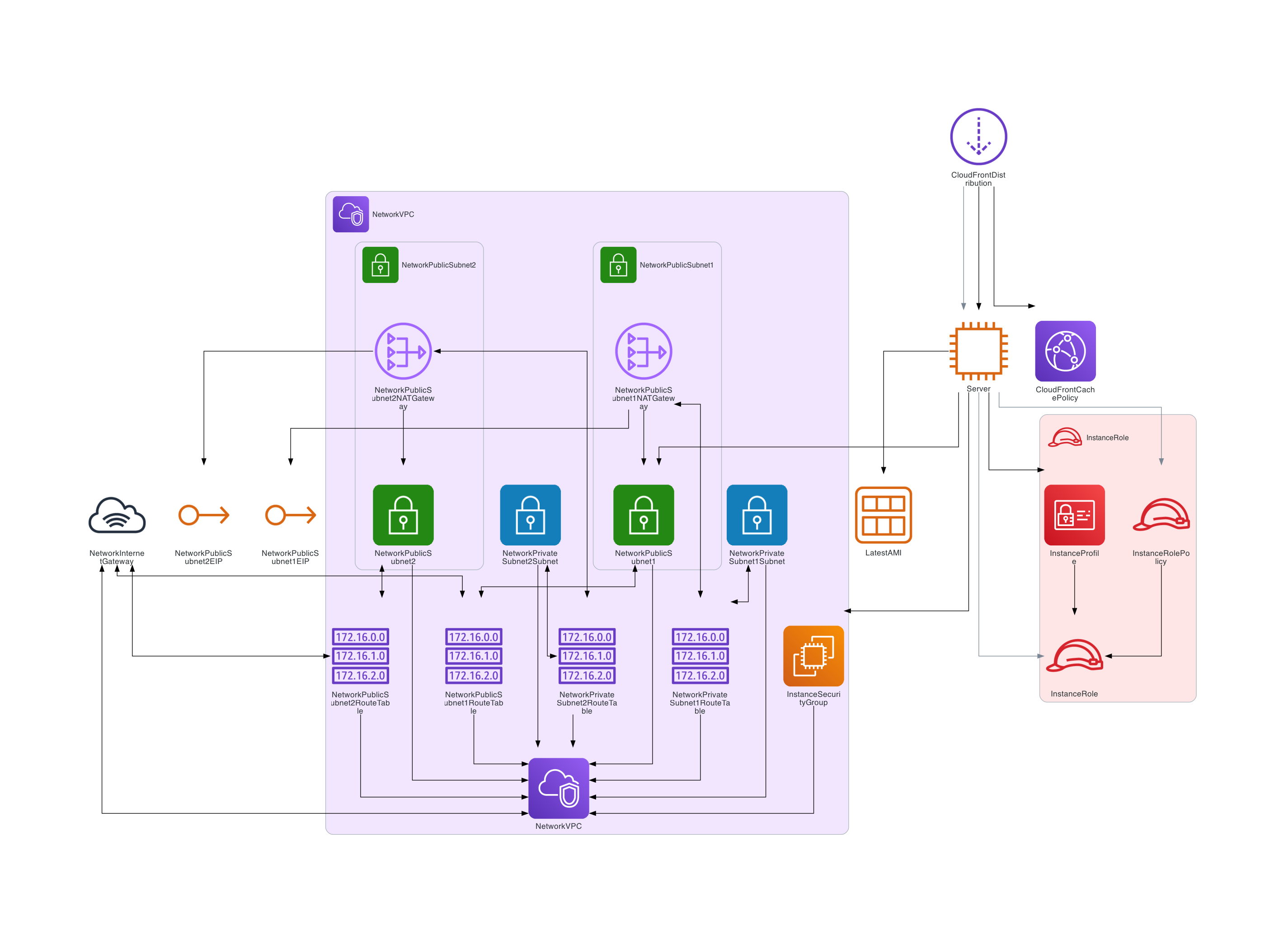
Following diagram is about AutoScaling:

Following diagram is about EKS:
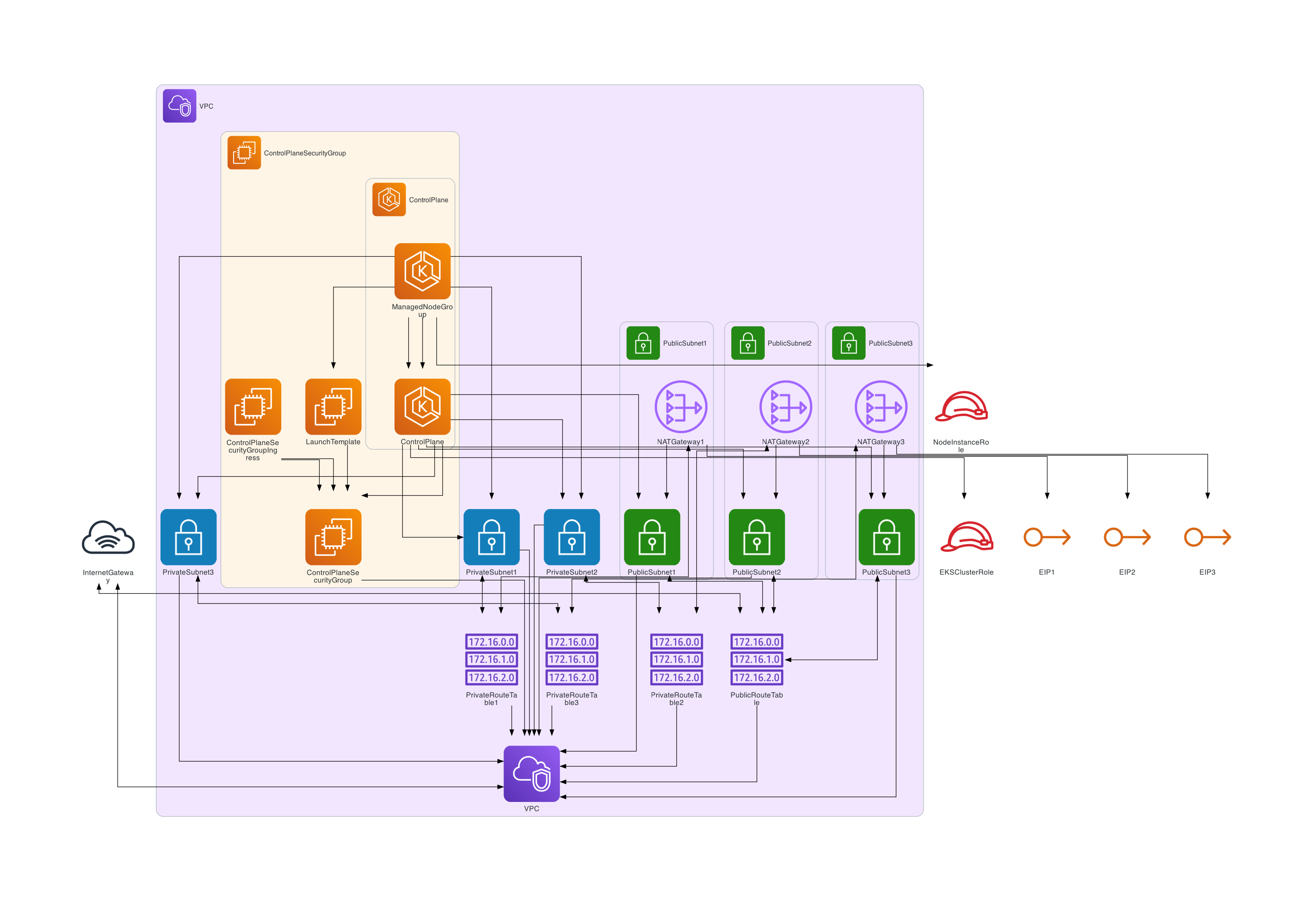
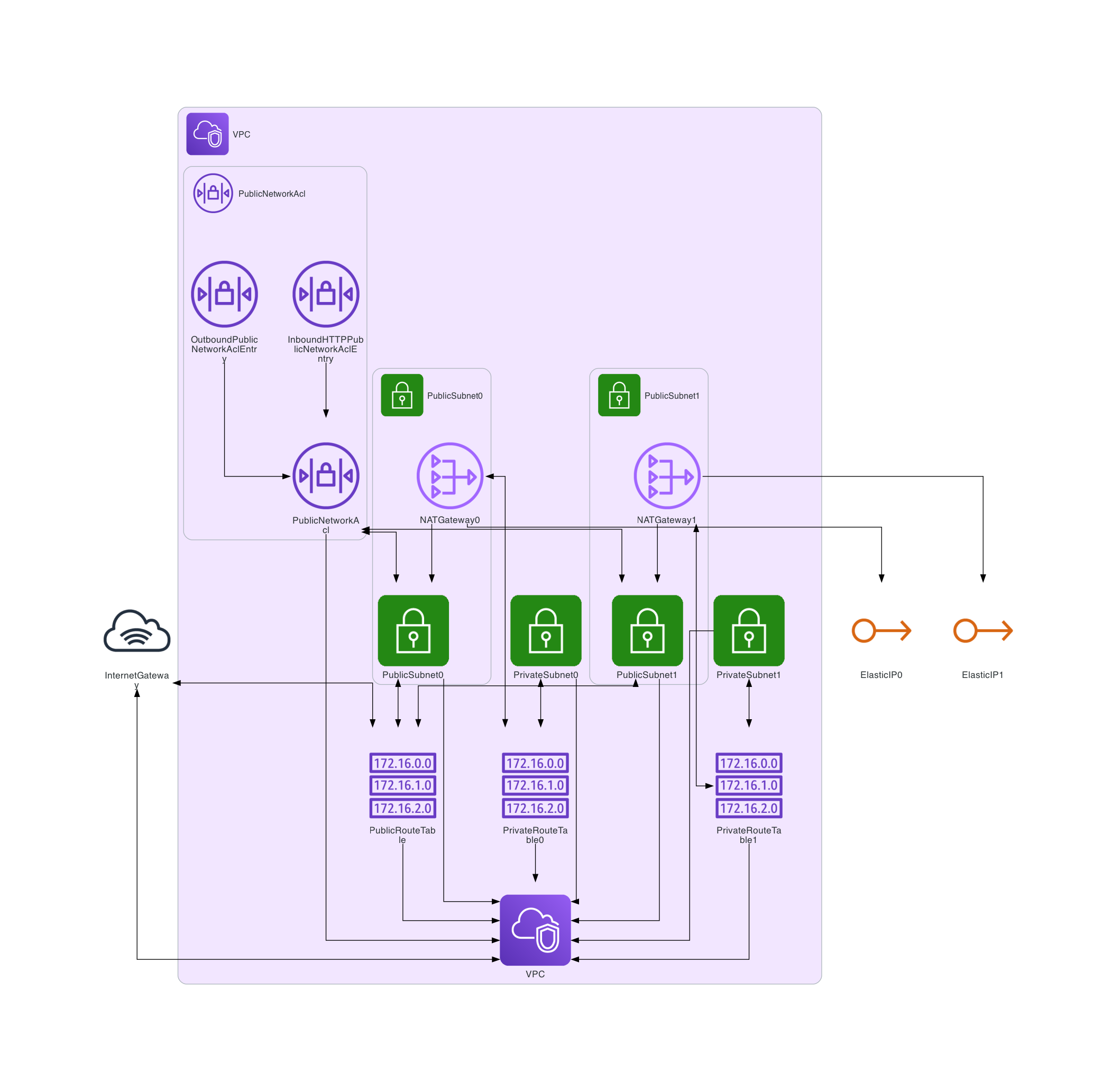
Following diagram is about VPC:
This project is licensed under the Apache 2.0 License.
Star this project if you find it useful!